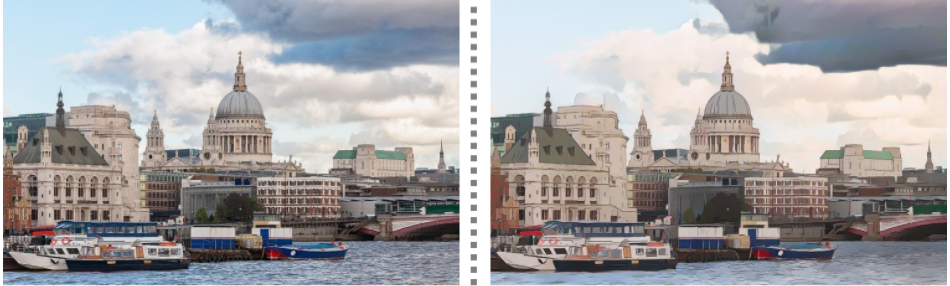
이미지를 카툰화로 바꿔주는 오픈 API
- 해당 URL로 이미지 및 비디오를 POST 요청 보내면 카툰화된 이미지 및 비디오로 반환
https://ainize.ai/psi1104/White-box-Cartoonization
psi1104/White-box-Cartoonization
Official tensorflow implementation for CVPR2020 paper “Learning to Cartoonize Using White-box Cartoon Representations”
ainize.ai
사용사례

예제 코드
1. React, useState 및 axios import
import React, {useState} from 'react';
import './App.css';
import axios from 'axios';
2. 이미지를 담을 변수 생성
  // 업로드 할 이미지를 저장 할 img
  // 카툰화할 이미지를 저장 할 cartoonImg
  const [img, setImg] = useState(null);
  const [cartoonImg, setCartoon] = useState(null);
3. 업로드 된 파일 처리
- 업로드 된 파일을 저장하고 reader.result를 통해 이미지를 미리 볼 수 있게 해줌
  const fileUpload = (e) => {
    let reader = new FileReader();

     // 파일 업로드 될 시 img에 파일 저장
    reader.onloadend = () => {
      const img = reader.result;
      if (img) {
        setImg(img.toString());
      }
    }
    if (e.target.files[0]) {
      reader.readAsDataURL(e.target.files[0]);
      trans(e.target.files[0]); // 들어온 파일을 매개변수로 trans 호출
    }


  }
4. 업로드 된 파일 post 요청
- axios를 통한 post 요청 responseType을 'blob'으로 설정!!!
  // FormData에 "file_type", "source"로 데이터를 담아 post 요청
  const trans = (image) => {
    let formData = new FormData();
    formData.append("file_type","image");
    formData.append("source",image);
    axios.post("https://master-white-box-cartoonization-psi1104.endpoint.ainize.ai/predict",
    formData,
    {
      responseType:'blob'
    })
    .then((response)=>{
      const url = window.URL.createObjectURL(new Blob([response.data], { type: response.headers['content-type'] } ));
      setCartoon(url);
      console.log(url);
    })
  }
5. 변환된 카툰화 이미지 다운로드 버튼
  // 다운로드 버튼 클릭시 다운로드
  const downBtn = () =>{
    const a = document.createElement("a");
    a.href = cartoonImg;
    a.download = "image.png";
    a.click();
    a.remove();
  }
6. 이미지 업로드 받을 간단한 HTML
  return (
    <div>
      {img != null && <img src={img} width="400px" height="400px" alt="no"></img>}
        <div>
            <label for="input-file">이미지 선택</label>
            <input type="file"
              id="input-file"
              accept='image/*'
              onChange={fileUpload}
              style={{display:"none"}}
              />
        </div>
      {cartoonImg != null && <img src={cartoonImg} width="400px" height="400px" alt="no"></img>}
        <div>
          <label onClick={downBtn}>다운로드</label>
        </div>
    </div>
  )
전체코드
import React, {useState} from 'react';
import './App.css';
import axios from 'axios';

const App = () => {

  // 업로드 할 이미지를 저장 할 img
  // 카툰화할 이미지를 저장 할 cartoonImg
  const [img, setImg] = useState(null);
  const [cartoonImg, setCartoon] = useState(null);


  const fileUpload = (e) => {
    let reader = new FileReader();

     // 파일 업로드 될 시 img에 파일 저장
    reader.onloadend = () => {
      const img = reader.result;
      if (img) {
        setImg(img.toString());
      }
    }
    if (e.target.files[0]) {
      reader.readAsDataURL(e.target.files[0]);
      trans(e.target.files[0]); // 들어온 파일을 매개변수로 trans 호출
    }


  }

  // FormData에 "file_type", "source"로 데이터를 담아 post 요청
  const trans = (image) => {
    let formData = new FormData();
    formData.append("file_type","image");
    formData.append("source",image);
    axios.post("https://master-white-box-cartoonization-psi1104.endpoint.ainize.ai/predict",
    formData,
    {
      responseType:'blob'
    })
    .then((response)=>{
      const url = window.URL.createObjectURL(new Blob([response.data], { type: response.headers['content-type'] } ));
      setCartoon(url);
      console.log(url);
    })
  }

  // 다운로드 버튼 클릭시 다운로드
  const downBtn = () =>{
    const a = document.createElement("a");
    a.href = cartoonImg;
    a.download = "image.png";
    a.click();
    a.remove();
  }

  return (
    <div>
      {img != null && <img src={img} width="400px" height="400px" alt="no"></img>}
        <div>
            <label for="input-file">이미지 선택</label>
            <input type="file"
              id="input-file"
              accept='image/*'
              onChange={fileUpload}
              style={{display:"none"}}
              />
        </div>
      {cartoonImg != null && <img src={cartoonImg} width="400px" height="400px" alt="no"></img>}
        <div>
          <label onClick={downBtn}>다운로드</label>
        </div>
    </div>
  )
}

export default App;
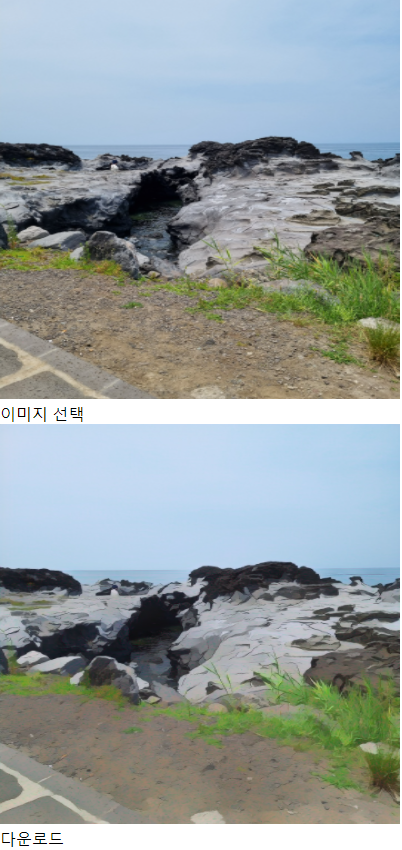
실행 결과
반응형